

In 2026, email and calendar management no longer needs to consume hours of your day. With a completely free AI agent built using n8n, Ollama (or Groq), and simple API connections, you can automate email triage, smart scheduling, and professional reply drafting all while keeping full human control. This step-by-step guide shows you exactly how to set up your own 0-cost AI executive assistant that reclaims over 10 hours every week, letting you focus on high-value work instead of inbox chaos.
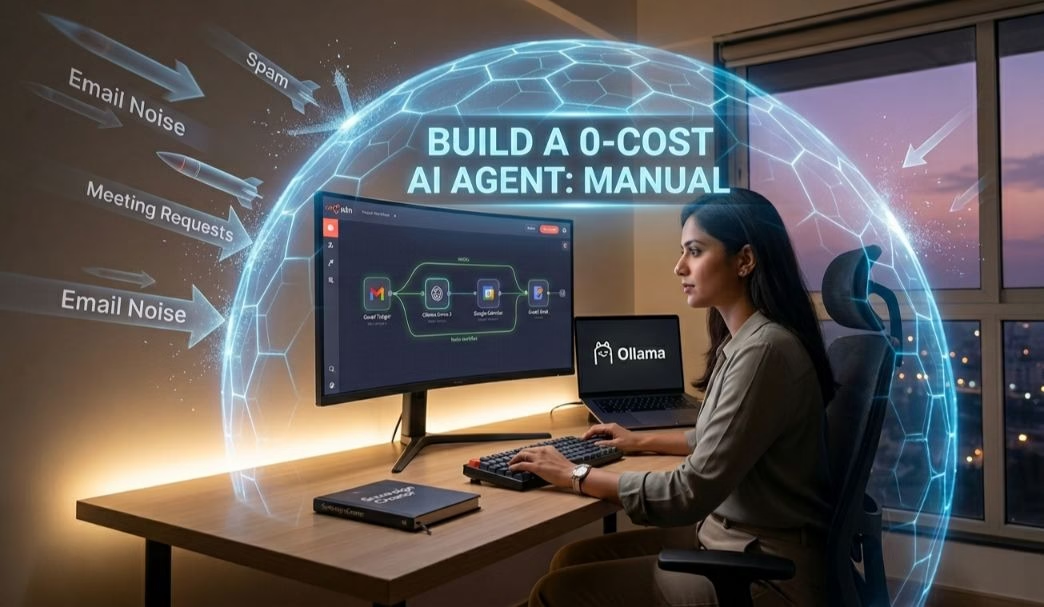
We’ve all been there. You open your laptop at 9:00 AM with a clear plan to tackle your “Big Three” tasks. Then, you click that little envelope icon. Two hours later, you’re buried under a mountain of CC’d threads, newsletters you don’t remember subscribing to, and three different people asking, “Does Tuesday at 4:00 PM work for a quick sync?”
By the time you look up, your creative energy is gone. You haven’t done your real work; you’ve just done the administration of your work. In the past, you needed a human Virtual Assistant or expensive enterprise software. But we are in 2026. The world has moved past simple chatbots—we are now in the era of AI Agents.
These intelligent agents don’t just respond to commands; they reason, use tools, remember context, and take meaningful actions toward a goal. Imagine an AI that reads your incoming emails, checks your availability, drafts polite and professional replies, suggests optimal meeting times, and even labels or archives low-priority messages — all while keeping you firmly in control as the final decision-maker. This isn’t science fiction anymore. With open-source and free tools, anyone can build such a system today without spending a single dollar on subscriptions or API credits.
What Exactly is an AI Agent?
Unlike a standard chatbot that just answers questions, an Agent is autonomous. It follows a goal, not just a command. Using frameworks like n8n, you can give your agent “tools” to interact with the real world — such as reading Gmail, checking Google Calendar, summarizing long threads, or even searching your past emails for context.
- A tool says: “I can summarize this email.”
- An agent says: “I noticed a high-priority client request. I checked your schedule and drafted a reply with three time slots for you to approve. Here’s the draft — would you like me to refine it?”
In 2026, AI agents have become incredibly capable thanks to advancements in local language models and visual workflow builders. They can handle multi-step reasoning: classify an email’s urgency, extract action items, cross-reference with your calendar, generate a response, and even learn from your feedback over time. The best part? You can build one that respects your privacy by running entirely locally or with generous free cloud options.
The “0-Cost” Philosophy: How We Keep it Free
To rank as a truly 0-cost setup, we utilize a Local-First and Open-Source Stack. In 2026, most modern laptops and desktops (even mid-range ones with 16GB+ RAM) can comfortably run “Small Language Models” (SLMs) locally. This means you never pay for API tokens, and your sensitive data never leaves your machine.
Our 2026 Tech Stack:
- The Brain: Ollama (For fully local AI) or Groq (Free high-speed cloud API with generous limits for faster responses).
- The Orchestrator: n8n Desktop (100% Free self-hosted workflow builder with a beautiful drag-and-drop canvas).
- The Connection: Official Gmail and Google Calendar APIs via Google Cloud Console (free tier is more than enough for personal use).
Ollama lets you run powerful models like Llama 3.2, Gemma, or Phi-3 directly on your hardware. Groq, on the other hand, provides blazing-fast inference (often 300-800 tokens per second) on their specialized hardware, making it ideal when you want quick responses without taxing your CPU/GPU. n8n acts as the glue — connecting everything visually without writing complex code.
Step 1: Setting Up the Orchestrator (n8n)
Think of n8n as the nervous system of your agent. It connects your email to your AI and your AI to your calendar. The Desktop version is perfect for beginners because it runs locally, keeps all data private, and requires zero server management.
Download n8n Desktop from the official site and install it (available for Windows, macOS, and Linux). Once launched, you’ll see the Workflow Canvas — a visual workspace where you drag and drop “Nodes.” Each node performs a specific task: triggering on new emails, calling the AI, checking availability, or creating drafts.
Your first node should be the Gmail Trigger. Configure it to poll your inbox every 15 minutes (or use webhooks for near real-time if you prefer). You can filter for unread messages, specific senders, or keywords to avoid processing spam or low-priority newsletters right away. n8n’s Gmail node supports OAuth2 authentication, making setup secure and straightforward.
Pro tip: Start simple. Create a test workflow that just triggers on new emails and logs the subject and sender. This helps you verify the connection before adding AI complexity.
Step 2: Choosing and Connecting Your AI Model
If privacy and zero ongoing costs are your top priority, go with Ollama. Install it with a single command or the desktop app, then pull a model like llama3.2 or gemma2:9b. These run entirely on your machine. Connect n8n to Ollama using the HTTP Request node or the dedicated Ollama Chat Model node. Point it to http://localhost:11434 and you’re good to go.
For speed demons who don’t mind a tiny bit of cloud usage (still free), use Groq. Sign up at console.groq.com for a free API key (no credit card needed). Groq’s models are incredibly fast and work great for real-time email drafting. In n8n, add an OpenAI-compatible node, change the base URL to Groq’s endpoint, and paste your key.
Advanced users can even combine both: route simple tasks to Ollama and complex reasoning to Groq using n8n’s IF nodes.
Step 3: Calendar Integration for Smart Scheduling
To make your agent truly intelligent, it needs visibility into your schedule. Enable the Google Calendar API in Google Cloud Console. Create a new project, enable the Calendar API, set up OAuth2 credentials, and add the authorized redirect URI for n8n.
In n8n, add a Google Calendar node. Your agent can now read free/busy slots, suggest realistic meeting times, and create draft events — eliminating endless back-and-forth emails.
Step 4: The System Prompt (The Agent’s Personality & Rules)
The quality of your AI agent depends heavily on its “System Prompt”.
Customize this prompt to match your style and rules. Test and refine it iteratively.
Step 5: The “Human-in-the-Loop” Safety Net
Never let the AI send emails autonomously. End every workflow by creating a draft. Review and approve them daily — this hybrid approach gives you speed + control.
Summary Checklist to Start Today
- Install n8n Desktop and Ollama (or get a Groq API key).
- Set up Google Cloud OAuth for Gmail and Calendar APIs.
- Build your first trigger + AI draft workflow.
- Copy and customize the System Prompt.
- Test with real emails and refine as needed.
- Reclaim 10+ hours of your week!
FAQ: Build a 0-Cost AI Agent for Email & Calendar
1. Is it really possible to build an AI agent for zero cost?
Yes. By using the “Local-First” approach, you eliminate monthly subscription fees. You use your own computer’s hardware (via Ollama) to run the AI and free-tier automation tools like the n8n Desktop version. The only “cost” is the electricity used by your computer.
2. Do I need coding skills to set this up?
No advanced coding is required. While knowing basic logic helps, tools like n8n use a visual “node-based” interface. You essentially drag and drop boxes and connect them with lines. Most of the technical setup involves copying and pasting API keys from Google or Microsoft.
3. How secure is a local AI agent compared to ChatGPT?
It is significantly more secure. When you use a local model like Llama 3 on your own machine, your data never leaves your local network. Unlike cloud-based AI, your private emails and calendar events are not stored on a third-party server or used to train future AI models.
4. Which AI model is best for managing emails?
For email and scheduling, Llama 3 (8B) or Mistral-7B are the current “sweet spots.” They are small enough to run fast on a standard laptop but intelligent enough to understand nuances, professional tone, and calendar logic.
5. Can the AI agent automatically send emails?
Technically, yes, but we strongly recommend a “Human-in-the-Loop” system. Instead of the AI sending the email, it should create a Draft. You can then spend 5 minutes every morning reviewing and hitting “Send” on the AI-generated replies. This prevents hallucinations and errors.
6. Will this work with both Gmail and Outlook?
Yes. Both Google and Microsoft provide developer APIs that allow n8n to connect to your accounts. You will need to create a free developer project in the Google Cloud Console or Azure Portal to get your connection credentials.
[…] prompts for email marketing have transformed how businesses create and scale campaigns in 2026. But it’s important […]